My Aadhaar UIDAI – Download Aadhaar | e-Aadhaar Password | Print e-Aadhar Card
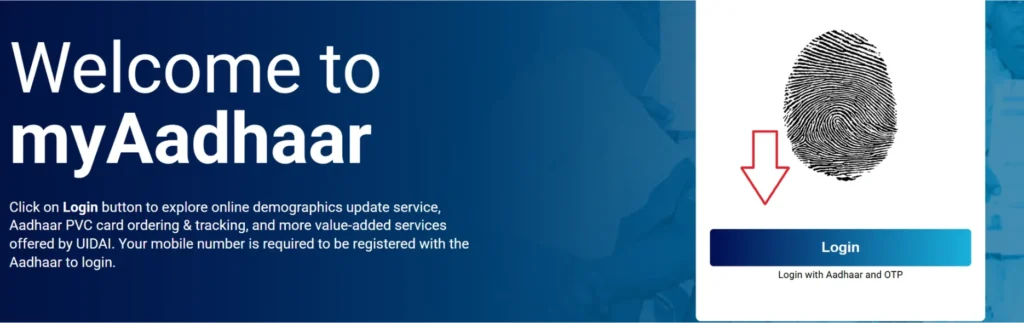
My Aadhaar UIDAI Portal allows you to download your e-Aadhaar online using your Aadhaar Number, Enrolment ID (EID), or Virtual ID (VID) with OTP verification. The downloaded PDF is digitally signed, password-protected, and equally valid as your physical Aadhaar card. You can open, print, and use it wherever Aadhaar is accepted. This guide covers Aadhaar download, PDF password, printing, and enrollment or update status.
What is an Aadhaar Card?
An Aadhaar card is a unique identity document issued by the Unique Identification Authority of India (UIDAI). It contains a 12-digit Aadhaar number linked to an individual’s demographic and biometric information. It serves as a widely accepted proof of identity and address for various purposes, including opening bank accounts, accessing government benefits, applying for loans and availing other services.
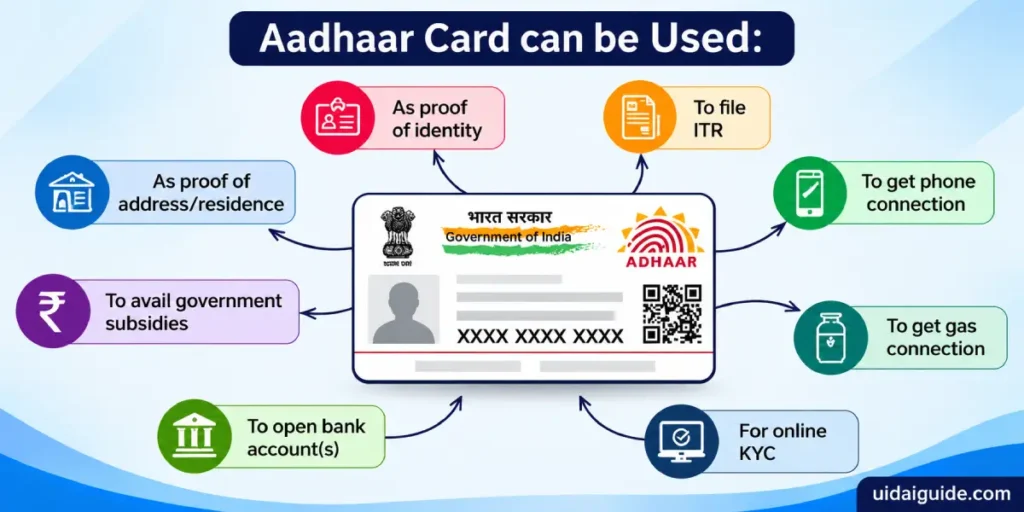
Key Components of Aadhaar Card
An Aadhaar card includes the following essential details:
- Full Name: Name of the Aadhaar holder
- Date of Birth: Registered birth date or year of birth
- Gender: Gender recorded in Aadhaar
- Photograph: Photo of the cardholder
- Aadhaar Number: Unique 12-digit identification number
- QR Code: Digitally verifiable information
- Address: Registered residential address on the Aadhaar record
Types of Aadhaar Card
UIDAI provides different types of Aadhaar cards based on an individual’s age and eligibility. There are three main types of Aadhaar available, each designed to meet the identification needs of different residents.
Aadhaar Card for Indian Residents
Indian residents can enroll for an Aadhaar card to establish their identity and access various services. My Aadhaar provides online facilities for checking Aadhaar details, downloading e-Aadhaar and accessing other UIDAI services. Aadhaar is also used for PAN linking and identity verification while filing Income Tax Returns (ITR), as per applicable government requirements.
Baal Aadhaar for Children and Minors
Children, including newborns, can also be enrolled for Aadhaar. Parents or guardians need to provide the required documents and identity details during enrollment. For children below five years, a blue-coloured Baal Aadhaar card is issued, and their biometric information is initially not collected.
Children must update their biometric details when they turn 5 years old and again at 15 years of age. These updates help ensure that their Aadhaar records remain accurate as they grow.
Aadhaar Card for NRIs
Non-Resident Indians (NRIs), including adults and minors holding a valid Indian passport, are eligible to apply for Aadhaar by visiting an authorized Aadhaar enrollment centre in India.
Overseas Citizens of India (OCIs) may also enroll for Aadhaar, subject to eligibility requirements. Unlike the earlier residency rule, eligible NRIs with a valid Indian passport can apply without completing 182 days of residence in India.
What is e-Aadhaar?
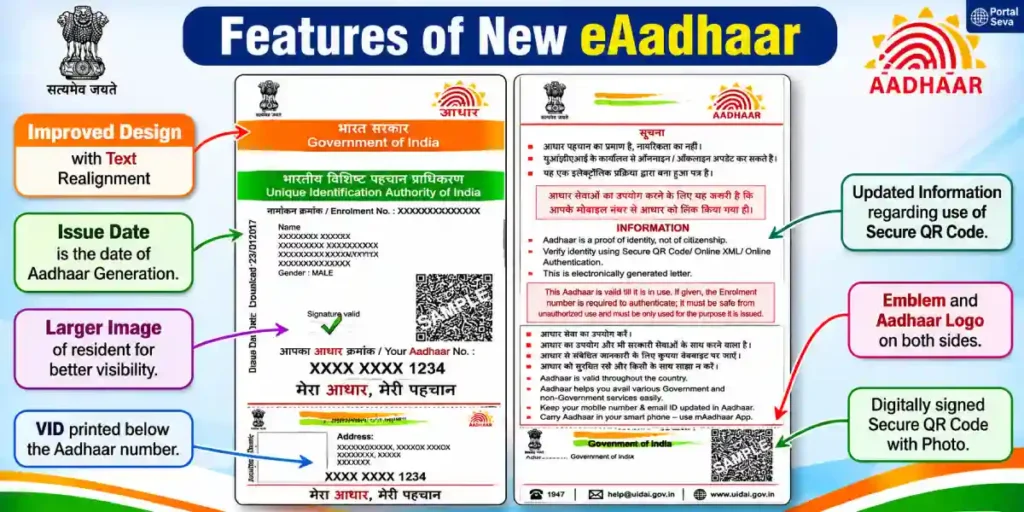
e-Aadhaar is the digital version of your Aadhaar card, issued by the Unique Identification Authority of India (UIDAI). It is a digitally signed, password-protected PDF document that can be downloaded and used as a valid alternative to the physical Aadhaar card.
Residents can download their e-Aadhaar online through the official UIDAI websites. Visit either of the portals below to access the download facility: uidai.gov.in & myaadhaar.uidai.gov.in
Features of the new e-Aadaaar
What is a Masked Aadhaar?
Masked Aadhaar is a feature that allows users to hide the first eight digits of their Aadhaar number in a downloaded e-Aadhaar PDF. Instead of displaying the complete number, these digits appear as “XXXX-XXXX”, while only the last four digits remain visible.
It can be used for identity verification in places such as hotels, amusement parks and during train travel, wherever masked Aadhaar is accepted as valid identification.
What is the Eligibility Criteria for Aadhaar Card?
Aadhaar is a unique identification system introduced by UIDAI to provide residents with a reliable identity document. It can be used for identity verification and accessing various services. Aadhaar enrollment is not restricted only to Indian citizens; eligible foreign residents can also apply.
The following categories may be eligible for Aadhaar enrollment, subject to UIDAI rules:
- Indian citizens residing in India.
- Non-Resident Indians (NRIs) holding a valid Indian passport.
- Overseas Citizens of India (OCI) cardholders who meet the applicable residency requirements.
- Long Term Visa (LTV) holders belonging to eligible minority communities from Afghanistan, Bangladesh and Pakistan, including Hindus, Sikhs, Buddhists, Jains, Parsis and Christians.
- Citizens of Nepal and Bhutan who fulfil the prescribed eligibility conditions.
- Other eligible foreign nationals who have completed the required period of residence in India.
What are the Documents Required for Aadhaar Card?
During Aadhaar enrollment, applicants need to provide supporting documents to verify their personal information. Depending on the applicant’s circumstances, the following types of documents may be required:
- Proof of Identity (POI): Documents confirming the applicant’s identity.
- Proof of Address (POA): Documents showing the applicant’s residential address.
- Proof of Relationship (POR): Documents establishing the relationship with a family member, where applicable.
- Proof of Date of Birth (DOB): Documents verifying the applicant’s date of birth.
What are the Documents Required for Aadhaar Card?
To enrol for an Aadhaar Card, applicants need to provide valid documents to verify their identity, address, relationship, and date of birth. The required document proofs include:
- Proof of Identity (POI)
- Proof of Address (POA)
- Proof of Relationship (PoR)
- Proof of Date of Birth (DoB)
Some commonly used documents for Aadhaar enrolment are listed in the table below:
| Document 1 | Document 2 | Document 3 |
|---|---|---|
| Applicant’s Passport | PAN Card | Ration Card or PDS Photo Card |
| Voter ID Card | Driving Licence | NREGS Job Card |
| Photo Bank ATM Card | Voter ID Card | Birth Certificate |
To apply for a new Aadhaar card or update details in your card, you can download the form by visiting the official website, i.e. https://uidai.gov.in or can visit the nearest Aadhaar enrolment centre to submit Aadhaar card enrolment form which is free of cost.
You need to submit the form along with the supporting documents to initiate the process of Aadhaar enrolment.
Note: In case you want to update details in your Aadhaar card, you need to pay a fee of Rs. 50 for the demographic and Rs. 100 for the biometric update at the Aadhaar Enrolment Centre.
Aadhaar Card Services on UIDAI Portal
The UIDAI portal provides several online facilities that allow Aadhaar number holders to access and manage their Aadhaar-related information. These services include downloading e-Aadhaar, updating eligible details, checking request status, ordering a PVC card, and managing Aadhaar security settings.
The major Aadhaar services available through the UIDAI and My Aadhaar portals are listed below:
| Aadhaar Download & Updates | Aadhaar Status & Verification | Other Aadhaar Services |
|---|---|---|
| Download e-Aadhaar | Check Aadhaar Enrolment Status | Book an Appointment |
| Download Masked Aadhaar | Check Aadhaar Update Status | Locate Aadhaar Enrolment Centre |
| Update Address Online | Check Aadhaar PVC Card Status | Order Aadhaar PVC Card |
| Submit POI/POA Document Update | Verify Aadhaar Number | Retrieve Lost or Forgotten EID/UID |
| Check Aadhaar Update History | Verify Email/Mobile Number | Generate or Retrieve Virtual ID (VID) |
| Check Aadhaar Validity | Check Aadhaar Authentication History | Lock/Unlock Aadhaar Biometrics |
| Check Bank Seeding Status | Check Grievance/Feedback Status | Aadhaar Lock/Unlock Service |
| Access Aadhaar Paperless Offline e-KYC | Check Aadhaar Enrolment & Update Charges | Aadhaar Services on SMS |
| Track Aadhaar Requests through Aadhaar App | File Grievance or Submit Feedback | Access Aadhaar Services through the Aadhaar App |
Note: Some services, such as mobile number, name, date of birth, photograph, and biometric updates, may require a visit to an Aadhaar Seva Kendra. Online update options depend on the service and UIDAI guidelines.
My Aadhaar Download Using Your Aadhaar Number
You can download your e-Aadhaar through My Aadhaar using your 12-digit Aadhaar number. Before starting, keep your registered mobile phone ready to receive the verification OTP. Your Aadhaar must have been generated before its electronic copy becomes available for download.
Step 1: Open the official download service
Visit UIDAI’s official website and choose Download Aadhaar to access the e-Aadhaar download service.
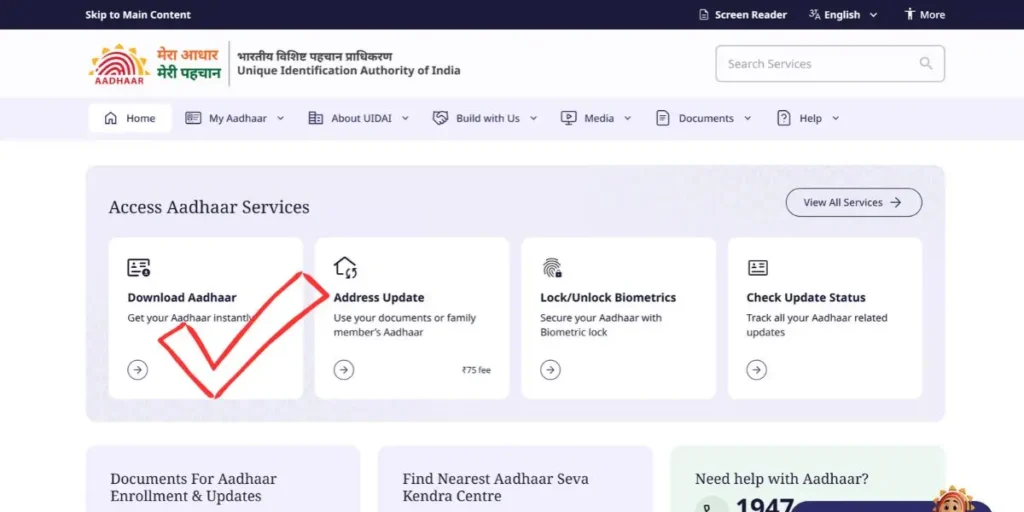
Step 2: Enter your Aadhaar number
Use the Aadhaar Number option and enter your 12-digit number carefully. Complete the CAPTCHA or security verification displayed on the page.
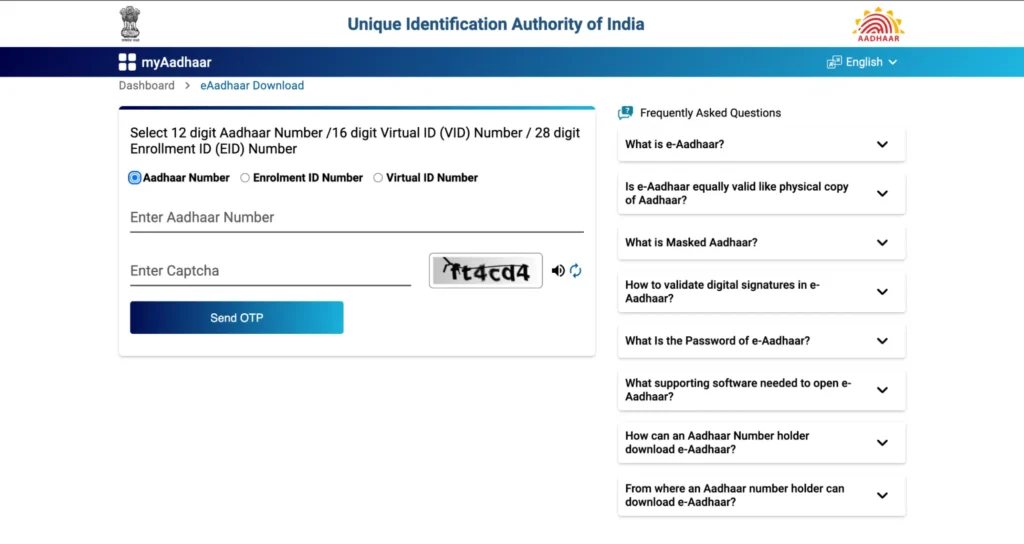
Step 3: Request an OTP
Request the verification code and check the mobile number registered with your Aadhaar.
Step 4: Verify and download
Enter the OTP and follow the on-screen instructions to download your e-Aadhaar PDF. If you choose a Masked Aadhaar, the first eight digits of your Aadhaar number will be hidden, leaving only the last four visible.
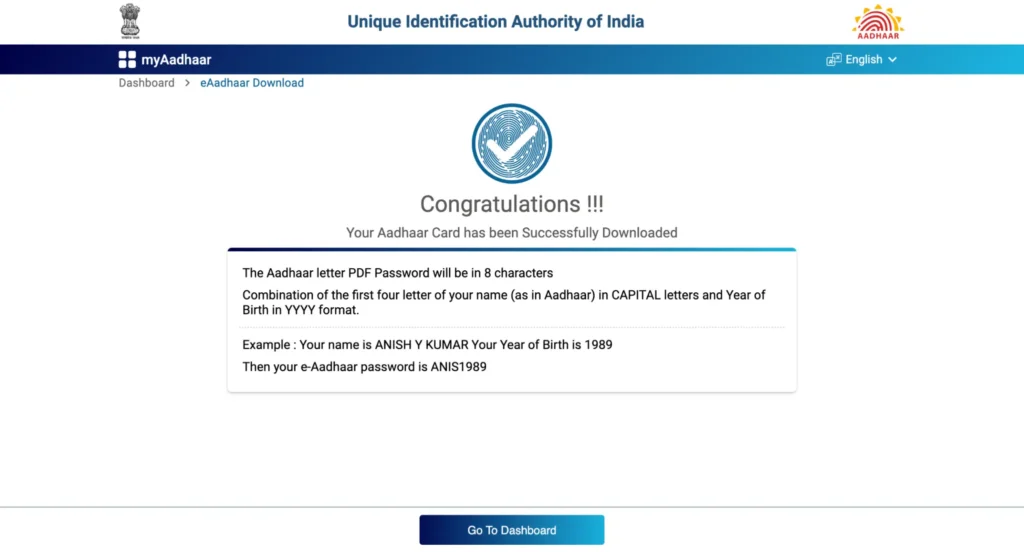
Step 5: Locate the downloaded file
Check your browser’s download list or your device’s Downloads folder. The actual save location depends on your browser and device settings.
Open and Print Your e-Aadhaar
Open the PDF and enter its password. The usual password format combines the first four letters of your name in capital letters with your birth year in YYYY format. For example, RAHUL, born in 1995, would use RAHU1995. Short names follow UIDAI’s specific examples, so the password may contain fewer than eight characters.
Once the PDF opens, select Print in your PDF viewer. Check the preview to ensure your details and QR code are clearly visible before printing.
How to Download e-Aadhaar If You Forget Your Aadhaar Number?
If you have forgotten your Aadhaar number or Enrolment ID (EID), you can recover it using your full name and registered mobile number or email address. You can then use the recovered details to download your Aadhaar card. Your name and date of birth alone are not sufficient for an online Aadhaar download.
Step 1: Visit the official UIDAI portal and Click on Retrieve Lost or Forgotten EID/UID..
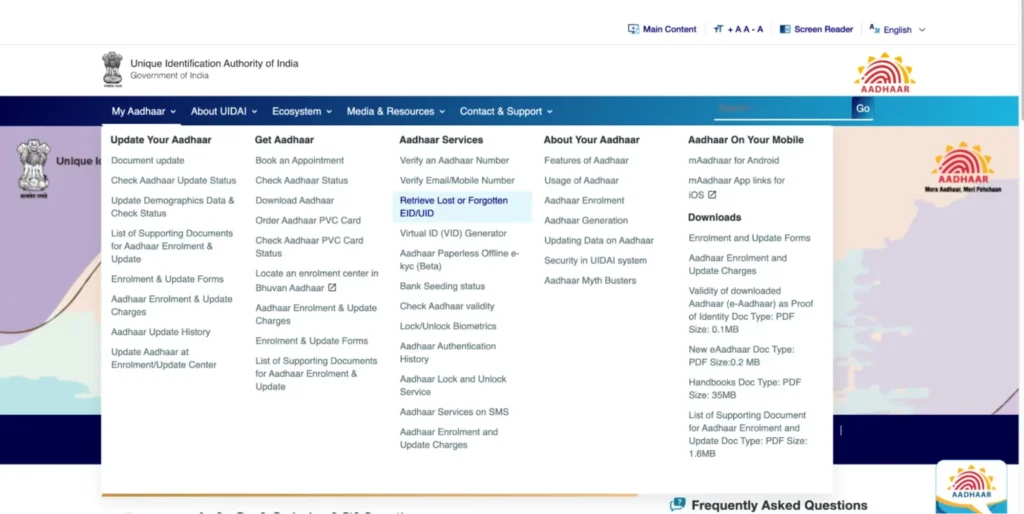
Step 2: Select the details you want to recover—your Aadhaar number (UID) or Enrolment ID.
Step 3: Enter your full name exactly as recorded in Aadhaar, your registered mobile number or email address, and the security code displayed.
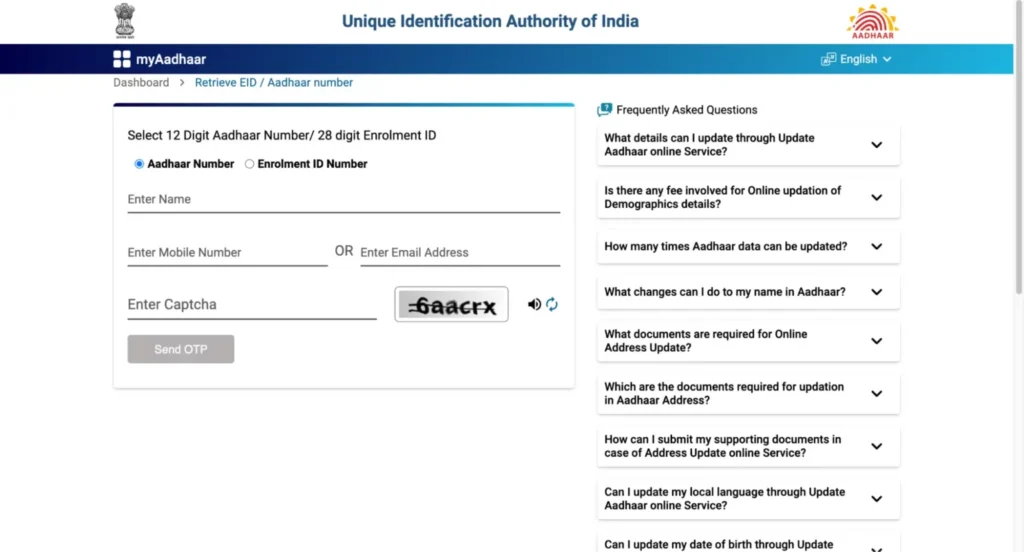
Step 4: Request an OTP and complete the verification instructions shown on the screen.
Step 5: After successful verification, check your linked mobile number for the recovered Aadhaar number or EID.
Step 6: Open the Download Aadhaar service on the official portal.
Step 7: Choose the appropriate identification option and enter your recovered Aadhaar number or EID details. Complete the security check and request an OTP on your Aadhaar-registered mobile number.
Step 8: Enter the OTP and complete verification to download your e-Aadhaar PDF. Open the password-protected file using your e-Aadhaar password, then save or print a copy as needed.
How to Download e-Aadhaar Using a Virtual ID (VID)?
You can download your e-Aadhaar using an active 16-digit Virtual ID (VID) instead of entering your Aadhaar number. Keep your Aadhaar-registered mobile phone ready, as you will need an OTP to complete verification. The online download service is free.
Step 1: Open the Download Aadhaar service
Visit UIDAI’s official My Aadhaar portal and select Download Aadhaar.
Step 2: Enter your Virtual ID
Choose the Virtual ID (VID) option and enter your 16-digit VID carefully.
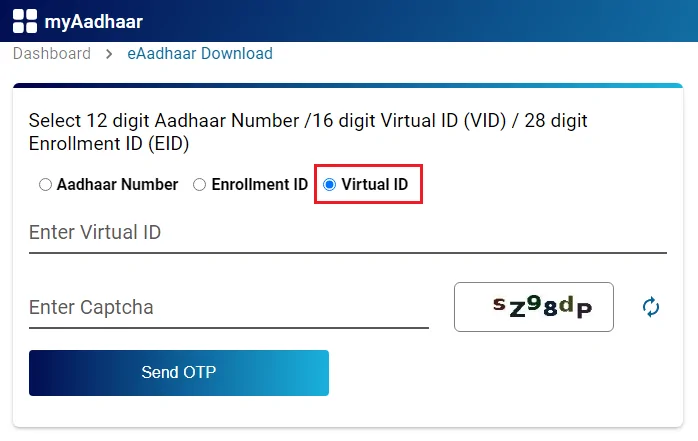
Step 3: Request an OTP
Complete the CAPTCHA or security check displayed on the page, then request an OTP. The verification code will be sent to your Aadhaar-registered mobile number.
Step 4: Verify and download your e-Aadhaar
Enter the OTP and complete the verification process using the download option shown on the screen. Save the password-protected e-Aadhaar PDF to your device.
After downloading, open the file with your e-Aadhaar password. You can then view, save or print your Aadhaar card.
How to Download Aadhaar Using Your Enrolment ID (EID)?
If your Aadhaar has been generated but you have not received the physical card or cannot remember your Aadhaar number, you can download e-Aadhaar using your Enrolment ID (EID). You will find this information on the acknowledgement slip issued during enrolment. Keep your Aadhaar-registered mobile phone ready for OTP verification.
Step 1: Open Download Aadhaar
Visit UIDAI’s official website and select the Download Aadhaar service.
Step 2: Provide your enrolment details
Choose the Enrolment ID (EID) option. Enter the enrolment details from your acknowledgement slip, including the 14-digit enrolment number and the date and time of enrolment, in the format requested on the screen.
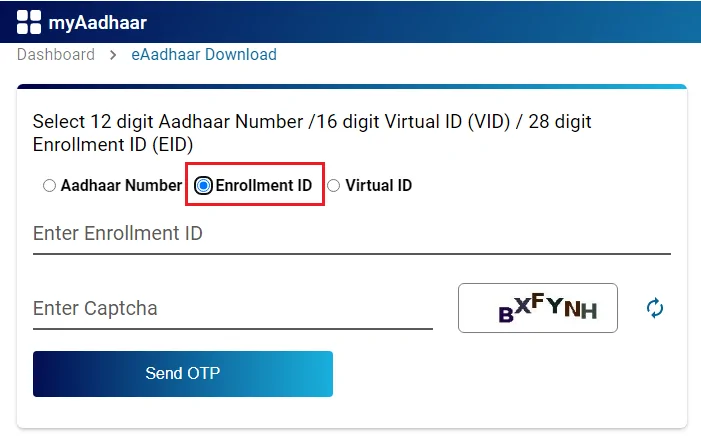
Step 3: Request an OTP
Complete the CAPTCHA or security check displayed, then request an OTP on your registered mobile number.
Step 4: Verify and download
Enter the OTP and complete verification using the download option shown. Save the password-protected e-Aadhaar PDF to your device.
Note: An EID does not guarantee that your Aadhaar is ready to download. If enrolment is still being processed, check aadhaar status first.
How to Download Your Aadhaar Card Through DigiLocker?
DigiLocker is a government digital document wallet operated under the Ministry of Electronics and Information Technology. It allows you to access and manage documents electronically. Once your DigiLocker account is linked with Aadhaar, your digital Aadhaar becomes available in the Issued Documents section.
Step 1: Sign in to DigiLocker
Open the official DigiLocker website or mobile app and sign in. If you do not have an account, complete the registration process first.
Step 2: Link your Aadhaar
If your account is not already Aadhaar-linked, follow the Aadhaar verification prompt and enter your 12-digit Aadhaar number.
Step 3: Complete OTP verification
Provide the requested consent and enter the OTP sent to your Aadhaar-registered mobile number. Follow the on-screen instructions to complete verification.
Step 4: Open Issued Documents
After successful linking, go to Issued Documents and select your Aadhaar card.
Step 5: View or download your Aadhaar
Open the document and use the available View or Download option to access your digital Aadhaar. You can also use DigiLocker’s sharing features when required.
Already linked your Aadhaar? Sign in and check Issued Documents directly—you can skip the linking steps.
How to Download a Masked Aadhaar Card?
A Masked Aadhaar is an electronic Aadhaar copy that hides the first eight digits of your Aadhaar number and displays only the last four. It helps protect your complete Aadhaar number while keeping your identity details visible.
You can download this version through UIDAI’s official service. Keep your Aadhaar-registered mobile phone ready for OTP verification.
Step 1: Open Download Aadhaar
Visit the official https://myaadhaar.uidai.gov.in/ and select the Download Aadhaar service.
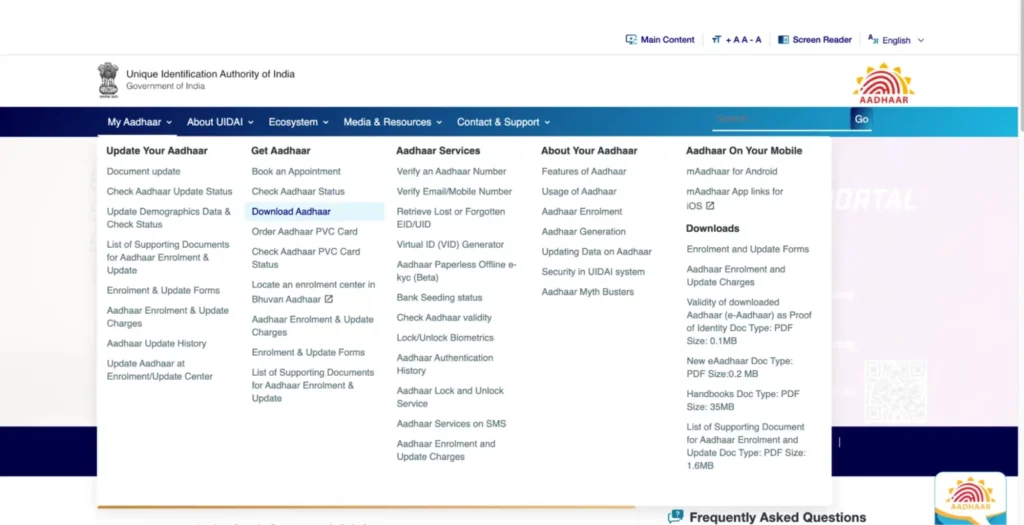
Step 2: Enter your identification details
Choose an available identification option, such as your Aadhaar number, Enrolment ID or Virtual ID, and enter the required details.
Step 3: Request an OTP
Complete the CAPTCHA or security check displayed on the screen and request an OTP on your registered mobile number.
Step 4: Choose Masked Aadhaar
Select the Masked Aadhaar option when it appears during the download process.
Step 5: Verify and download the PDF
Enter the OTP and complete verification using the download option shown. Save the masked Aadhaar PDF to your device.
How to Get an Aadhaar Card Without a Registered Mobile Number?
If you cannot receive OTPs on an Aadhaar-registered mobile number, you can visit an authorised Aadhaar centre to obtain a printout. The centre can retrieve your Aadhaar after verifying your identity through biometric authentication.
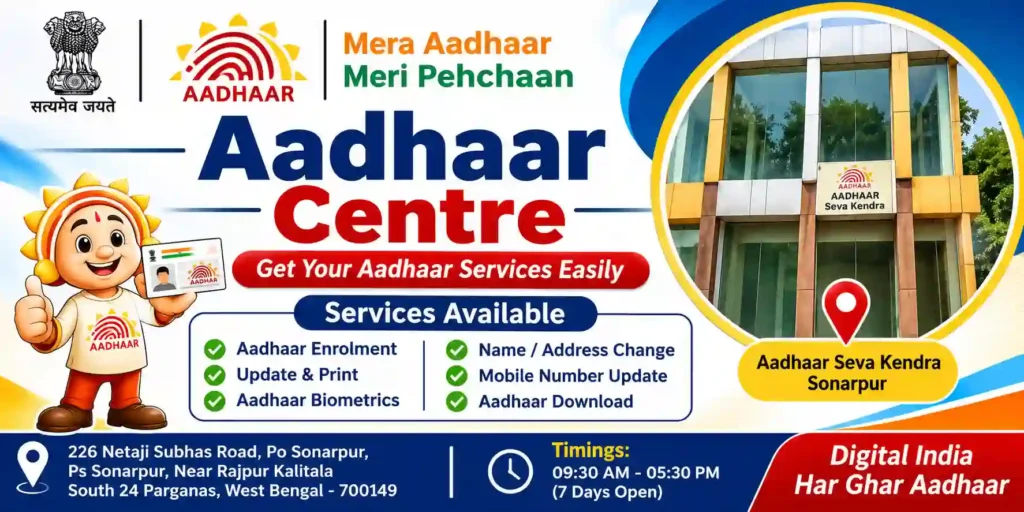
Step 1: Visit an authorised Aadhaar centre
Go to an Aadhaar Seva Kendra or authorised enrolment centre. Carry your Aadhaar number or enrolment acknowledgement slip, if available.
Step 2: Request the Aadhaar print service
Ask the operator to retrieve and print your Aadhaar. If you do not know your Aadhaar number, provide the identification details requested to help locate your record.
Step 3: Complete biometric verification
Authenticate your identity using a fingerprint or iris scan, as directed by the operator. You must visit the centre personally for this process.
Step 4: Collect your Aadhaar printout
After successful verification, the operator can download and print your Aadhaar. UIDAI’s current published charge for the Aadhaar download and A4 colour-print service is ₹40.
For an Aadhaar PVC card: Use UIDAI’s separate PVC ordering service. The current charge is ₹75, including GST and Speed Post charges, with delivery to the address registered in Aadhaar.
How to Download e-Aadhaar Using the UMANG App?
The UMANG app provides access to Aadhaar services, including downloading an electronic copy of your Aadhaar card. Keep your Aadhaar-registered mobile phone ready to receive the verification OTP.
Step 1: Open the UMANG app
Install the official UMANG app on your smartphone, open it and sign in or register if prompted.
Step 2: Find My Aadhaar
Use the app’s search feature or browse the available services to locate My Aadhaar.
Step 3: Select Download Aadhaar
Open the Aadhaar service and choose Download Aadhaar from the available options.
Step 4: Enter your Aadhaar details
Provide your 12-digit Aadhaar number, complete the CAPTCHA or security check displayed and request an OTP.
Step 5: Complete OTP verification
Enter the code received on your Aadhaar-registered mobile number and follow the on-screen instructions to complete authentication.
Step 6: Review your Aadhaar details
Once verification succeeds, open the available Aadhaar preview or document.
Step 7: Save your e-Aadhaar
Use the download option to save the electronic copy to your device. If a Masked Aadhaar option is offered, you can select it to hide the first eight digits of your Aadhaar number.
How to Download e-Aadhaar Through the mAadhaar App?
The steps below describe the older mAadhaar app. If its Aadhaar download service is available in your installed version, you can use it to obtain an electronic Aadhaar copy. Keep your Aadhaar-registered mobile phone ready for OTP verification.
Step 1: Open mAadhaar
Launch the app and complete the required setup or sign-in process.
Step 2: Find Download Aadhaar
Open Get Aadhaar and select Download Aadhaar.
Step 3: Choose your Aadhaar version
Select Regular Aadhaar or Masked Aadhaar, depending on whether you want your complete Aadhaar number displayed.
Step 4: Select an identification option
Choose your Aadhaar number, Virtual ID (VID) or Enrolment ID (EID).
Step 5: Enter the required details
Provide the selected identification number, complete the security check and select Request OTP.
Step 6: Verify the OTP
Enter the code received on your Aadhaar-linked mobile number and complete verification.
Step 7: Open and save the PDF
Select Open, where displayed, and use the available option to save your e-Aadhaar PDF.
Password for the downloaded PDF:
The usual format combines the first four letters of your name in capital letters with your four-digit birth year. For example, RAHUL, born in 1995, would use RAHU1995. For shorter names, the password may contain fewer than eight characters.
App update: UIDAI also provides a separate Aadhaar app, which uses a different registration process. Follow the instructions for the app you have installed.
Consumer Experience
How long will it take to download my Aadhaar card online after I have made an update?
After updating my mobile number in Aadhaar, I was able to download my updated e-Aadhaar through the UIDAI website within a few minutes. I simply visited the Aadhaar download section, entered the required details, and completed the OTP verification. Once the process was completed, I could download my Aadhaar PDF without any difficulty. The overall experience was quick and convenient.
-Ritesh Aggarwal
How to Retrieve Your Aadhaar Number on Your Mobile?
If you have forgotten your Aadhaar number, you can recover it through UIDAI’s Retrieve UID/EID service. Keep your registered mobile phone ready and enter your name exactly as recorded in Aadhaar.
Step 1: Open the official UIDAI portal and select the service for https://myaadhaar.uidai.gov.in/retrieve-eid-uid.
Step 2: Choose Aadhaar Number (UID). If you need your Enrolment ID instead, select EID.
Step 3: Enter your full name, Aadhaar-registered mobile number or email address, and the security code displayed.
Step 4: Select the option to request an OTP.
Step 5: Check your registered mobile phone for the verification code.
Step 6: Enter the OTP and complete verification using the option shown on the screen.
Step 7: After successful verification, UIDAI will send the requested Aadhaar number or EID to your linked mobile number by SMS.
How to Print Your Downloaded e-Aadhaar?
After saving your e-Aadhaar PDF, you can open it with a PDF reader and print a copy by following these steps:
Step 1: Open the downloaded file
Locate the e-Aadhaar PDF on your device and open it using a PDF reader or a browser that supports PDF files.
Step 2: Enter your e-Aadhaar password
The usual password combines the first four letters of your name in capital letters with your four-digit birth year. For example, someone named PRIYA, born in 1998, would enter PRIY1998.
Step 3: Select your print settings
Choose Print, select your printer and specify the number of copies. Check the preview to ensure your details and QR code are clearly visible, then confirm printing.
Important Points to Remember
- Keep your registered mobile phone ready. For OTP-based downloads through the UIDAI website, the verification code is sent to the mobile number linked with your Aadhaar.
- Online Aadhaar download is free. You can download your e-Aadhaar once your Aadhaar has been generated. UIDAI’s resident handbook specifies a maximum of 20 downloads per calendar year.
- e-Aadhaar has the same validity as the physical Aadhaar copy. It is digitally signed by UIDAI and can be presented for Aadhaar verification.
- Wait for updates to be approved. If you have requested a correction, download a fresh copy after UIDAI confirms that the update has been completed.
- Open the PDF before printing. Enter your e-Aadhaar password, check your details and use your PDF reader’s print option to obtain a paper copy.
- Assistance is available without access to your registered mobile number. Visit an authorised Aadhaar centre for Aadhaar retrieval and printing through biometric verification.
For mobile access, UIDAI’s current Aadhaar app uses face authentication during registration and provides an e-Aadhaar download service. Follow the authentication instructions for the official service you are using.
FAQs on Aadhaar Card Download
e-Aadhaar is a password-protected digital copy of Aadhaar, digitally signed by UIDAI. It has the same validity as the physical Aadhaar card.
Open the Download Aadhaar service on the My Aadhaar portal. Enter your Aadhaar number, EID or VID, complete OTP verification and download your PDF.
OTP-based online downloads require access to your registered mobile number. If you cannot receive the OTP, visit an authorised Aadhaar centre for assistance and a printed copy.
No. You must first retrieve your Aadhaar number or EID through the UIDAI service using the required details and verification. You can then use the retrieved number to download e-Aadhaar.
Masked Aadhaar is a version of Aadhaar in which the first eight digits are hidden, while only the last four digits remain visible.
The password generally consists of the first four letters of your name in capital letters followed by your birth year. For example, if your name is Rahul and your birth year is 1995, the password will be RAHU1995.
Open the downloaded e-Aadhaar PDF using its password. Select the Print option and print the document. Make sure your details and QR code are clearly visible.
Yes, downloading e-Aadhaar online is free. UIDAI’s resident handbook specifies a limit of 20 downloads per calendar year.
Yes. Once UIDAI successfully processes your update, you can download a fresh e-Aadhaar PDF containing your revised details.
An Aadhaar PVC card is a compact and durable version of Aadhaar. UIDAI’s stated order charge is ₹75, including GST and Speed Post charges. Check the official portal for the current fee before ordering.
Yes. UIDAI allows applicants to use an alternate mobile number while placing an Aadhaar PVC card order. The card is delivered to the address registered in Aadhaar.
UIDAI states that the Aadhaar PVC card is normally dispatched within five working days of receiving the request and delivered through India Post’s Speed Post service. Actual delivery time may vary by location.
Visit the My Aadhaar portal and open the relevant status-check service. Enter the required reference details from your acknowledgement slip or update request receipt to check the status.